How to setup your Android Device with Ringcentral
- Launch the app store on your Android device.
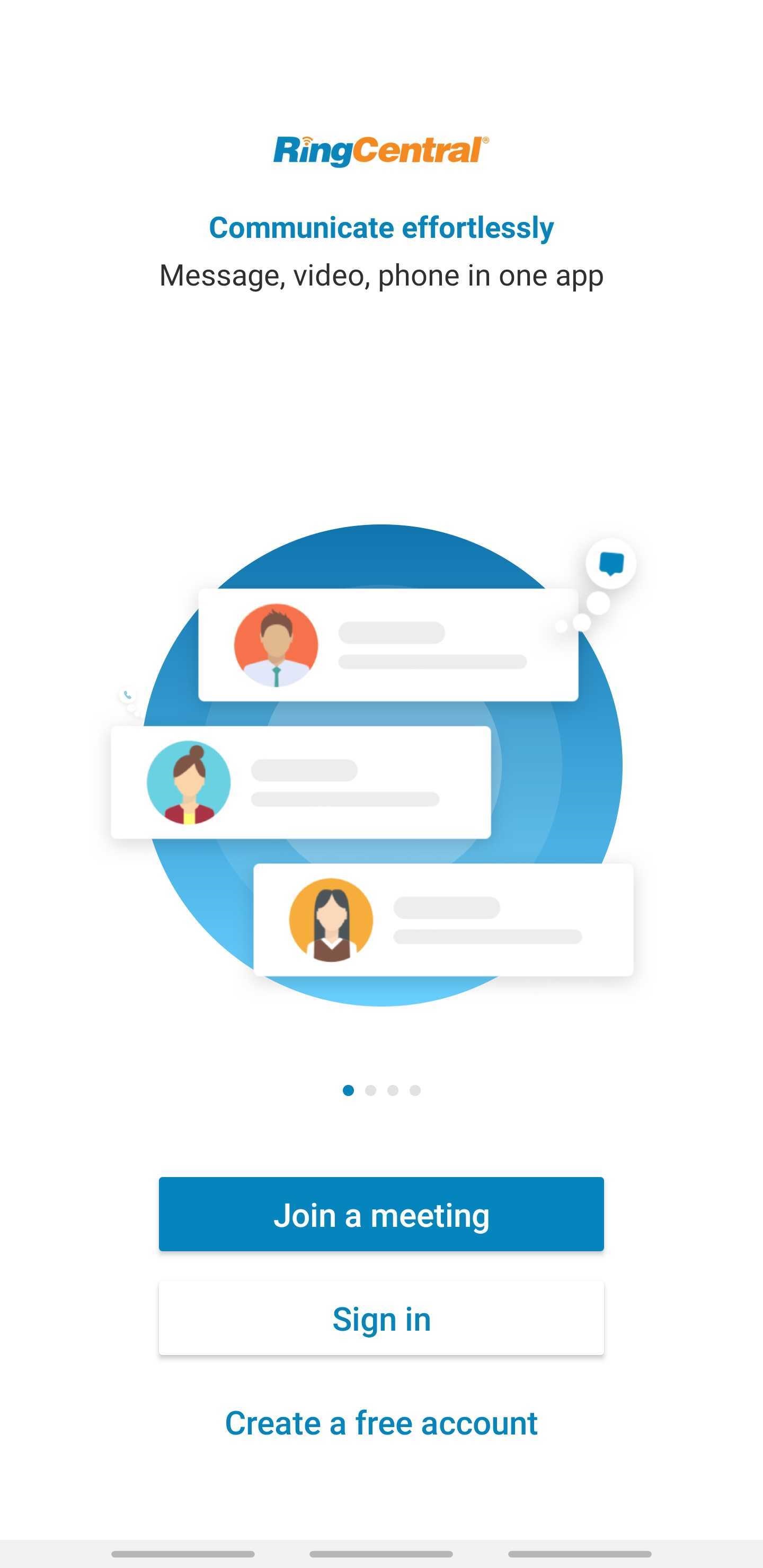
- Search for Ringcentral (Be sure to download the app that contains the R for the logo shown below)
- Select download and open the newly install application
To get logged into the RingCentral Application please do the following:
- Select Sign in
- Select Single-sign on
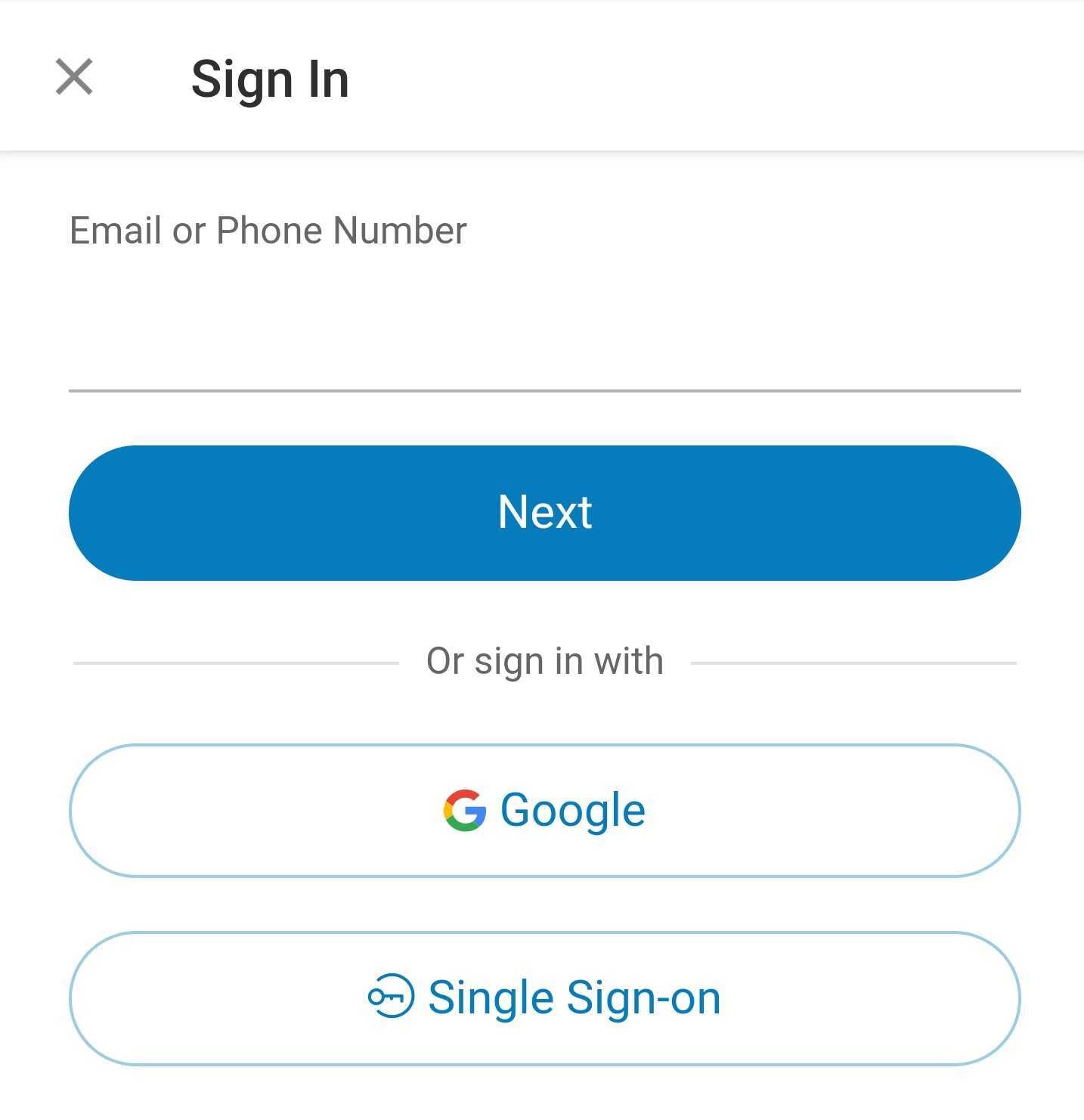
- Enter your Aurora University email address and select Submit

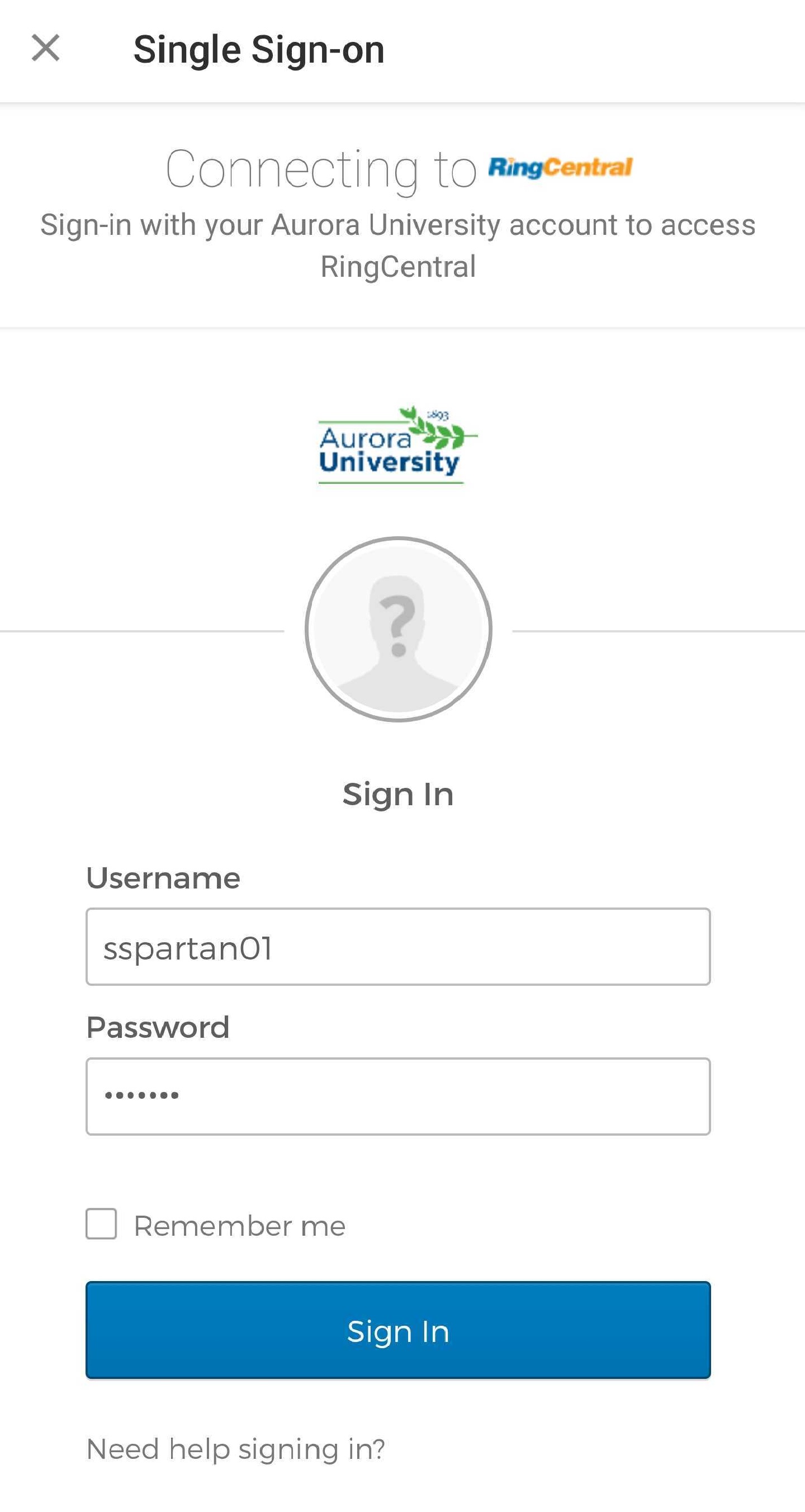
- You will then be brought to a login page from Okta, please enter in your username and password and select Sign In
- You are now logged into the Ringcentral application, if you require any further assistance please reach out to the ITS team by emailing itshelp@aurora.edu or by calling 630-844-5790.