Your PMI is assigned to you automatically as a permanent personal meeting room. You can start it at anytime or schedule it for a future use. Your PMI is part of your personal meeting URL; for example, https://zoom.us/j/5551112222.
Customize your PMI
- Log in to Okta
- Select "Zoom" from the Okta Dashboard
- Click Profile.
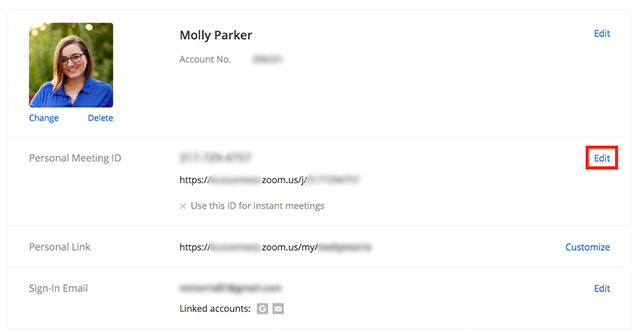
- Next to Personal Meeting ID, click Edit.
- Enter a 10-digital ID.
- Click the check box if you want to use your PMI for instant meetings.
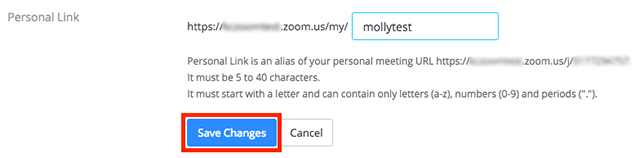
- Click Save Changes.
Restrictions for customizing your PMI
There are some restrictions for customizing your PMI. The number you choose must meet the following criteria:
- Start with 2–9 (cannot start with 1 or 0)
- Following PMI prefixes (toll-free number prefixes) are not allowed:
800, 400, 888, 887, 877, 866, 855, 850, 803, 804, 807, 808, 809, 660, 508, 900, 200, 300, 500, 600, 700 - Must not repeat 3 digit groups like 247 247 247x or x247 247 247
- Must not repeat 3 digit groups like 222 444 777x or x222 444 777
- Must not use the same 8 digits like 222 x22 222x
- Must not have the same number 5 or more times consecutively like 11111xxxxx, x11111xxxx, xx11111xxx, xxx11111xx, xxxx11111x, xxxxx11111
- Sequential numbers are not allowed; for example, 123456789x
- Meeting IDs already in use are not allowed