- Sign in to Okta
- From the Okta Dashboard, select "Zoom"
- Navigate to Settings on the left
- Navigate to the Meeting tab and verify that the password settings that you would like to use for your meetings and webinars are enabled.

If the setting is disabled, click the Status toggle to enable it. If a verification dialog displays, choose Turn On to verify the change.
Note: If the option is grayed out, it has been locked at either the Group or Account level, and you will need to contact your Zoom administrator.
Editing a Password for a Meeting
By default, meetings are assigned a random password. You can update the password to one of your choosing.
- Sign in to Okta
- From the Okta Dashboard, select "Zoom"
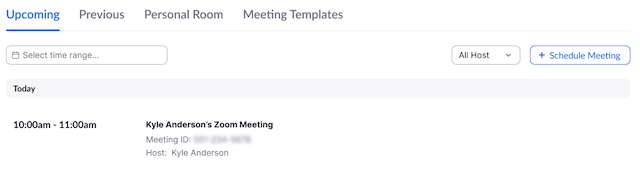
- Navigate to Meetings.
- Click the topic of the meeting you would like to update the password for.
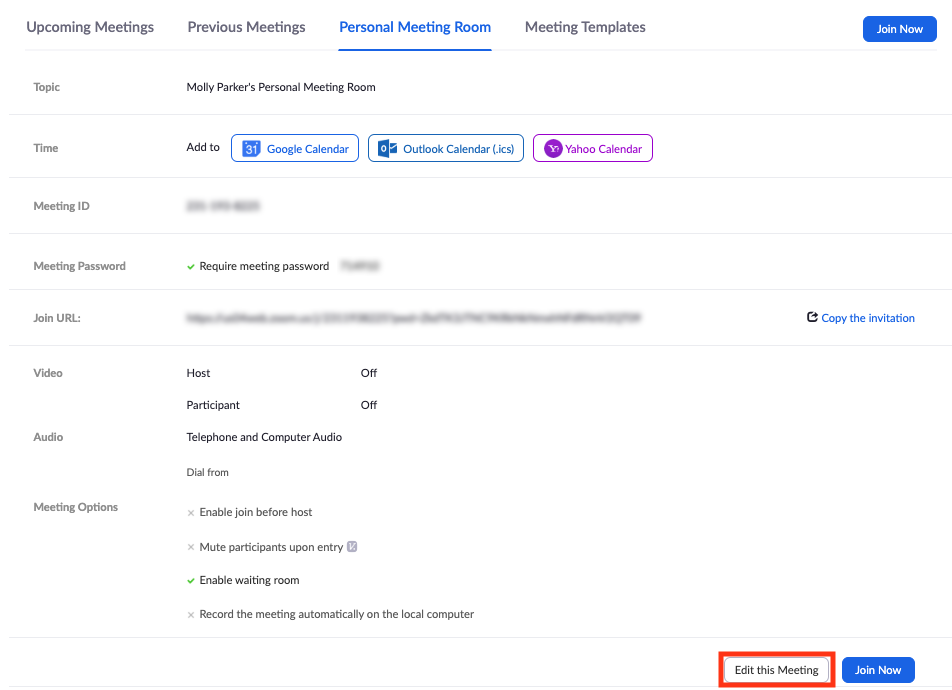
- Click Edit this Meeting.
- Under Meeting Options, edit the password.

- Click Save.
Editing a Password for a Webinar
By default, webinars are assigned a random password. You can update the password to one of your choosing.
- Sign in to Okta
- From the Okta Dashboard, select "Zoom"
- Navigate to Webinars.
- Click the topic of the webinar you would like to update the password for.

- Click Edit this Webinar.
- Under Webinar Options, edit the password.

- Click Save.