Viewing cloud recording settings
- Access recording management by logging into Okta and clicking on "Zoom'
- After this, click "Recordings" on the left navigation bar:
- Find the recording you want to view and click the topic.
Note: If your meeting has not finished converting, the recording will show in the list with a Processing Recording label. Once the recording has finished converting, you will be able to view, share, download or delete your cloud recording.
You will see a the recording files and options: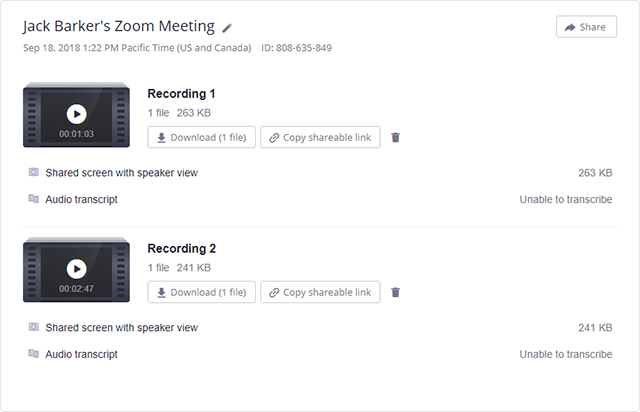
File types
- Shared screen with speaker view: MP4 file with audio and video showing both active speaker view and shared content.
- Shared screen with gallery view: MP4 file with audio and video showing both gallery view and shared content.
- Active Speaker: MP4 file with audio and video showing the active speaker view only.
- Gallery View: MP4 file with audio and video showing the gallery view only.
- Shared Screen: MP4 file with audio and video showing the shared screen only.
- Audio only: M4A file with a recording of the audio.
- Audio transcript: VTT file with a transcript of the audio only.
- Chat file: Text file with the transcript of in-meeting chat.
Learn more about recording layouts.
Settings for recording
- Pencil icon
 : Allows you to rename the meeting topic.
 - This recording will be deleted in __ days: If you enabled auto-deletion, this displays the number of days before the recording is deleted. You will receive an email notification 7 days before the recording is deleted.
- Recording Analytics: View metrics for the recording.
- Recording thumbnail: Play the video or audio file in your browser.
- Download: Downloads the recording file to your local computer.
Settings for sharing
Click Share to display the recording link information and sharing settings, such as disabling downloads from viewers and requiring a password to view.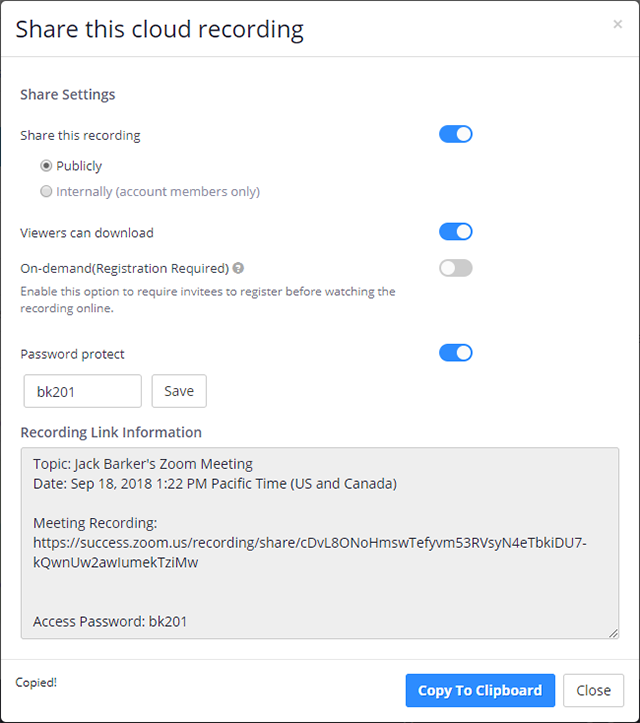
- Share this recording: Allows the recording to be shared publicly or internally. Switch the toggle off if you want the recording to be private. If you share the recording, Zoom will create a web page where visitors can view the cloud recording.
- Viewers can download: Allows viewers to download the video in addition to viewing it online.
- On-demand(Registration Required): Requires users to enter their name and email address before viewing or downloading the recording. The host will be able to download a report with this information.
- Password protect: Requires users to enter a password before viewing or downloading the recording. After toggling this to on, enter a custom password and click Save.
- Copy shareable link: Copies the link to your cloud recording. Share this link to allow others to view the cloud recording.
- Trash icon
 : Moves the file to your trash.